Notion is my preferred tool for manipulating tabular data because of its clean UX. The most time consuming part of using Notion has been structuring data into a Notion Database. Notion has a great built-in CSV file importer that lets you cleanly map a CSV’s columns to Notion Property Types, but I’ve found that even getting a cleanly formatted CSV file to be time consuming.
It turns out Cursor (and Claude Code) are a great way of getting data into Notion. And I’ve used this setup for everything from vacation planning to sales prospecting to even hacky evaluations on AI prompts and models.
Cursor and Claude Code are both tools featuring AI Coding Agents intended for developers building software. But the same AI Coding Agents are also great at writing throwaway scripts for pulling data down from APIs, cleanly formatting the data, and uploading it into a Notion Database.
The most obvious path is using Cursor or Claude Code to format data into a CSV and then manually upload it to a Notion Database. But, I’ve found simply prompting Cursor/Claude Code to use the Notion Javascript SDK works well enough and lets me be completely hands-off in this data ingestion process.
The workflow for this is dead simple. I create a throwaway directory with a single .env file with my Notion Internal Integration Secret and whatever API keys I happen to need.
/temp-jul-hiking-plans-notion-upload
  .env (contains Notion Secret Integration Key and additional API keys)
The rest is just writing the prompt within Cursor that includes:
- link to any additional API documentation
- what data I want fetched from the API
- how the data should be formatted within Notion eg. Property Types, labels, etc
- link to Notion SDK: https://github.com/makenotion/notion-sdk-js
- link to the Notion Page where the new Database should go
The rest of this post describes how to get Notion set up so you can programatically interact with it using the API and a few concrete examples I’ve used in my personal life and in my work as an early stage founder.
Table of Contents
- Use Case #1: Hiking Planning
- Use Case #2: External API Data (Sales Prospecting)
- Use Case #3: Evaluating AI Prompts and Models
- Notion Internal Integration Setup
- Caveats
Use Case #1: Hiking Planning
I’m planning a Summer 2026 backpacking trip with some friends and picked up “Backpacking Washington: Overnight and Multiday routes” to get a curated list of recommendations and trail notes.

Within the book is a great tabular index of all the hikes in the book, over 80 of them in total!

I’m still using the physical book for its valuable trail notes, but I want to quickly filter down the list based on mileage and season while also collaborating on this selection process within Notion. Manually getting these into Notion would be painfully tedious, so I create a throwaway directory with pictures of all the pages with this table.
/temp-jul-hiking-trip
  /img
    ...all the images of the table in the book
  .env - has my Notion Internal Integration Secret
It takes some back and forth with Cursor to get the right mapping from the pictures of the table to proper Notion Properties, but end to end it takes me less than 30 minutes.

Use Case #2: External API Data (Sales Prospecting)
One of the tricks I’ve used for Sales Prospecting is using Google X-Ray searches. Among other things, it let’s you restrict the domain you’re searching against.
For example, one of the earlier product ideas I worked on was a tool for businesses using Notion. These businesses often use Notion for their job postings and since they’re publically listed, you can specifically search for them using a Google X-Ray Search.
Here’s what the Google X-ray search results look like when only searching across published Notion Pages: site:notion.site "job board":

To get this Google Search Results programatically, I use SerpAPI.
My temporary directory starts out like this:
/temp-notion-users-prospecting
  .env - has my Notion Internal Integration Secret + SerpAPI API Key
I prompt Cursor to hit the SerpAPI with the site:notion.site "job board" query and save the results to a JSON. Then I tell Cursor to get that JSON data into a Notion table.
Grabbing the results from an X-ray search is the first step and I’m still manually qualifying these potential leads, so Notion’s UX helps me out in this manual process.
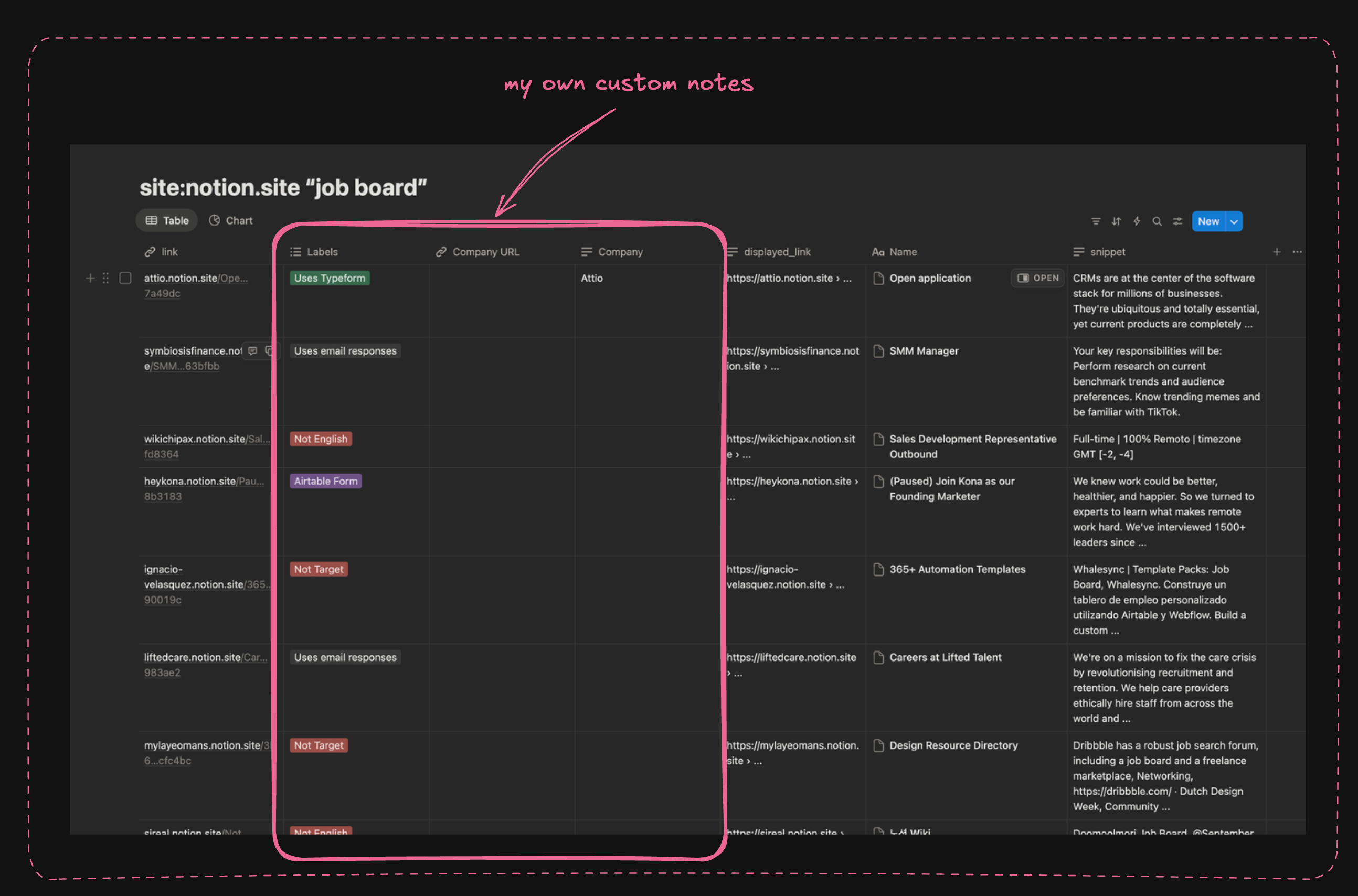
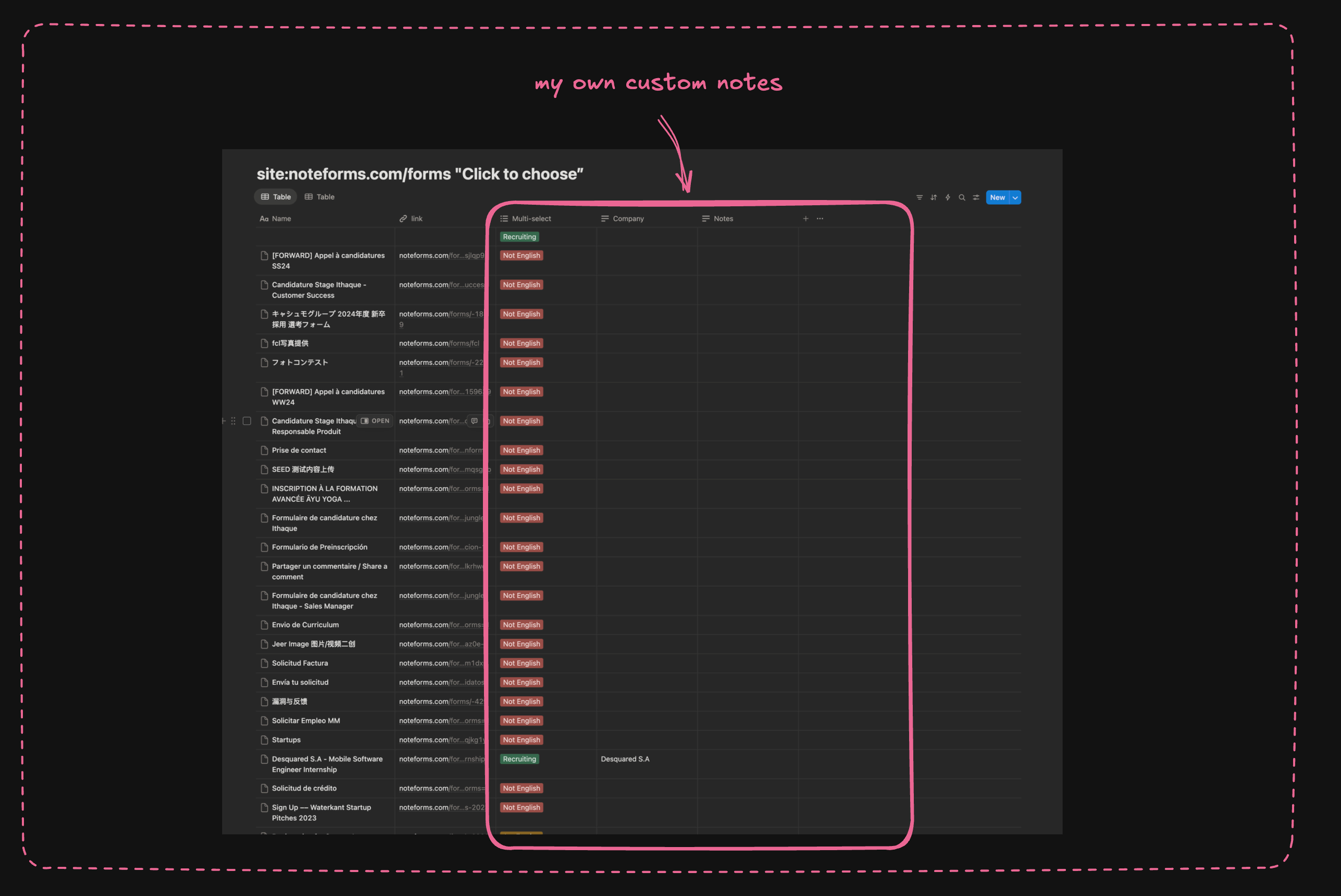
Outside of Google X-ray searches from SerpAPI, I’ve also used Exa’s Web Search API for searches where I don’t have exact keywords or domains nailed and Firecrawl to fetch the content on the links themselves.
If this workflow of using 3rd party data providers to hydrate a table feels familiar, it’s because I’m basically frankensteining Notion + Cursor to be a stand in for Clay.com or freckle.io. Use those tools if this data enrichment workflow is something you’re using every day, but since I’m only occasionally building these kinds of lists, this hacky setup works well enough for me and saves me from paying an extra subscription.
Use Case #3: Evaluating AI Prompts and Models
When building out AI features, you often need to manually evaluate results before eventually having more elaborate scoring and judging systems in place. This is probably the most hacky usage of Notion, but, I like being able to easily tag rows with a Multi-Select Notion Property.
In this instance, I’m running my product locally and testing the feature against multiple inputs to compare the output of different models. I’m then getting this into Notion just to have a quick and dirty evaluation.
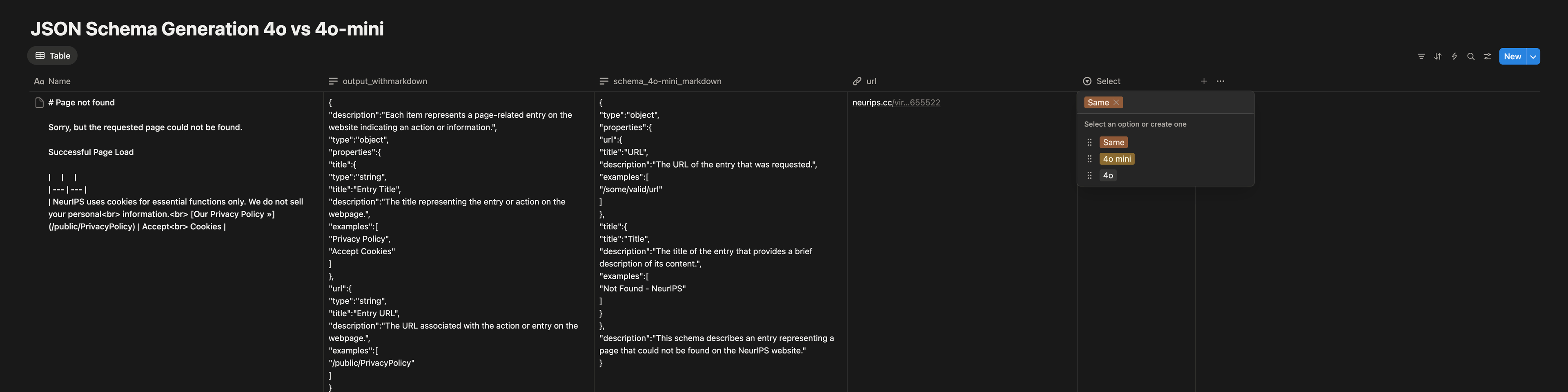
This is admittedly a tortured example, so here are much better alternatives for LLM Prompt Engineering and Evaluation:
Caveats
Notion has its own MCP Server with tools that cover most of the basic functionality you might want: https://developers.notion.com/docs/mcp-supported-tools. Depending on your use case, you might be better off connecting the Notion MCP to your regular ChatGPT / Claude account without reaching for a developer-facing product like Cursor or Claude Code.
If you’re planning to use the Notion SDK, Notion has a rate limit of ~3 requests/second and currently doesn’t have a bulk Page Create API (see Page Create API here), so you’ll want to Rate Limit your API requests by using something like ratelimit-js. For non-technical folks reading this, it’s usually sufficient to prompt Cursor/Claude Code to rate limit requests without intervention.
Notion Setup
This section is on setting up Notion if you want to use the Notion SDK approach. If you just want to upload CSV into a Notion Database, you don’t need to do this.
Here’s the official Notion documentation on how to set up an integration:
https://developers.notion.com/docs/create-a-notion-integration#getting-started
Regardless, I’ll summarize the steps here too…
Getting a Notion Integration Key
Open up your Workspace Settings from the left Sidebar. Navigate “Settings” > “Connections” > “Develop or manage integrations”
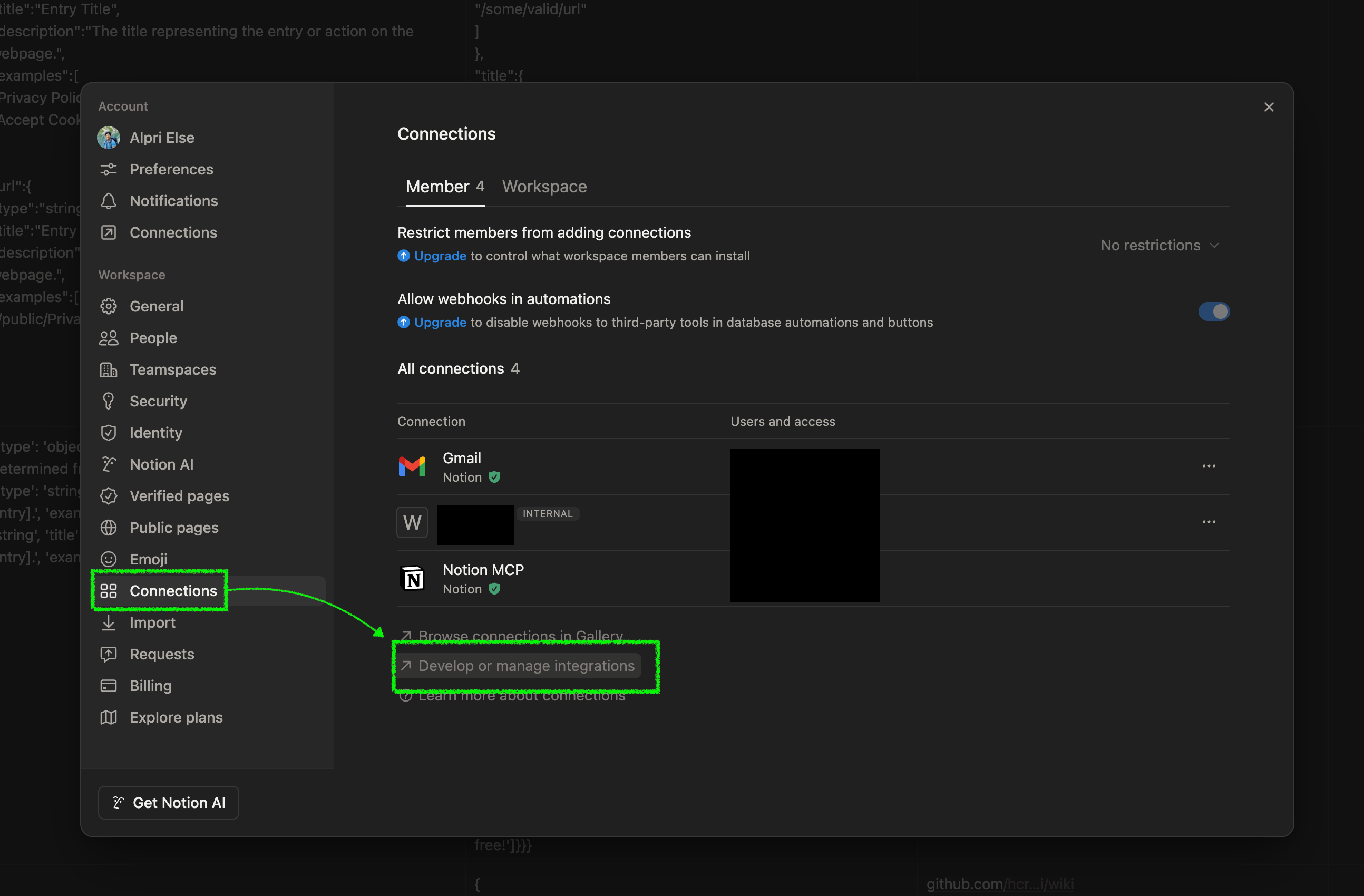
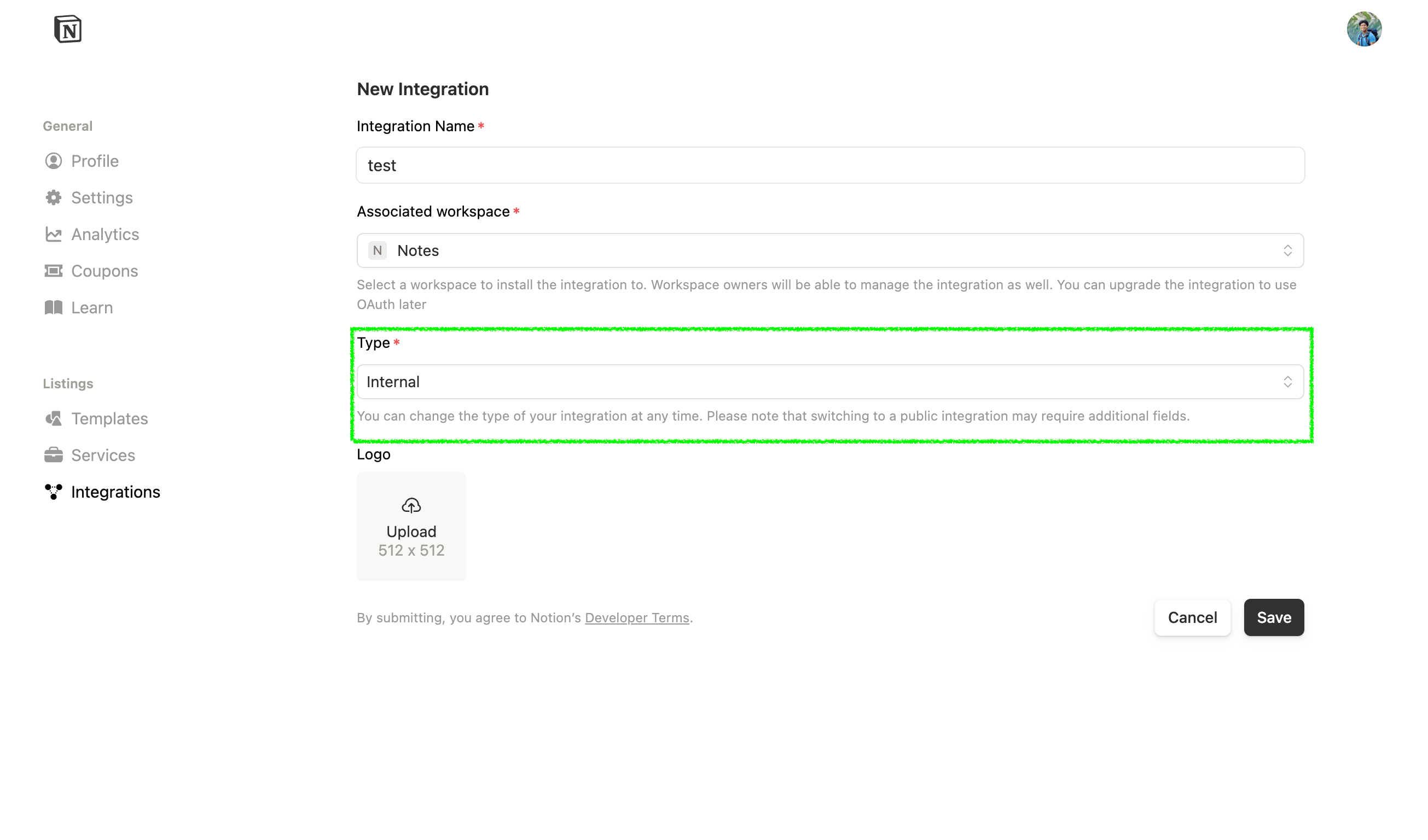
From this page, create a new integration with Type “Internal”.

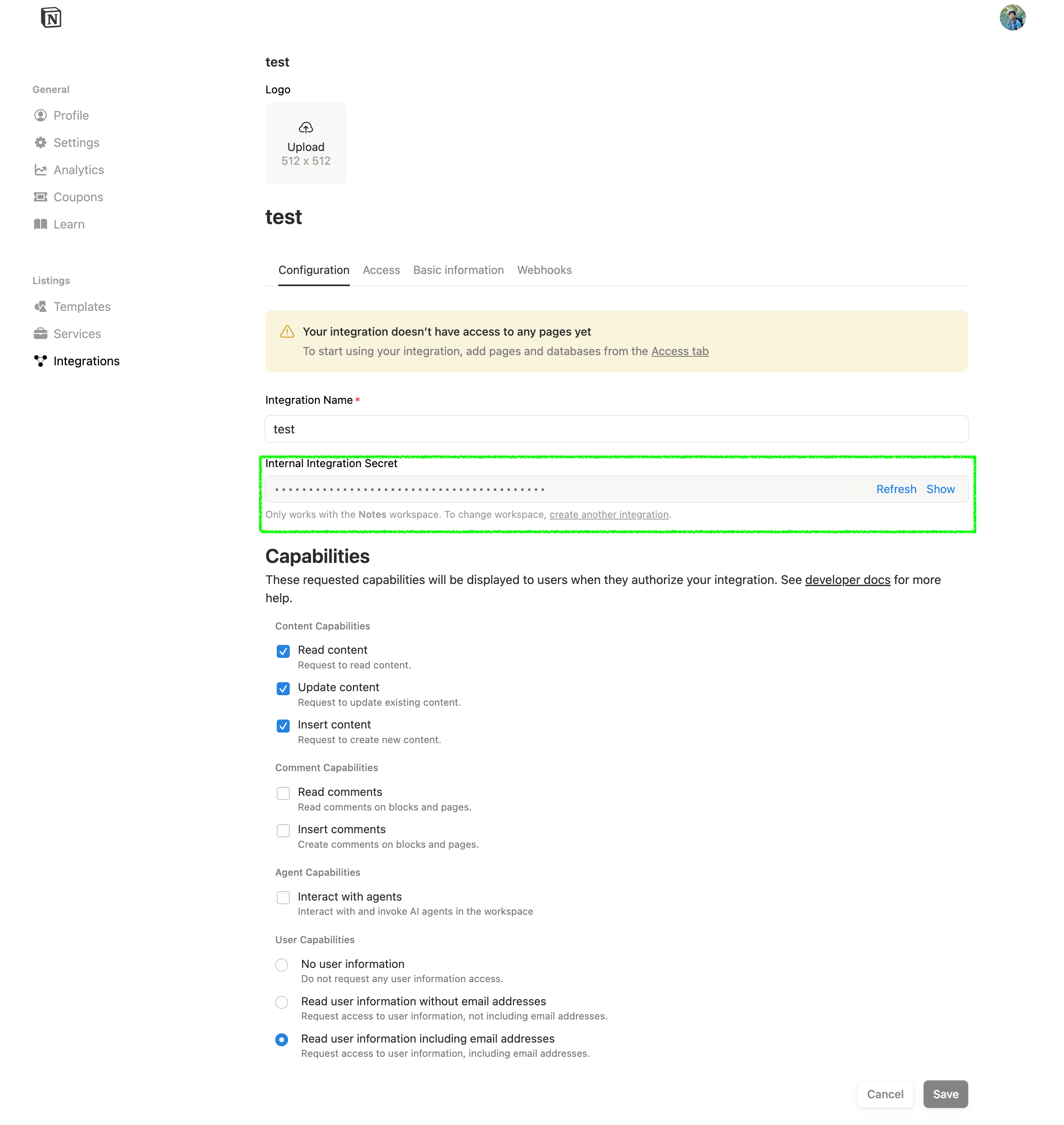
Once you’ve created the integration, you can copy the “Internal Integration Secret” which we’ll put into our .env in the directory we’ll open with Cursor.
Enabling the Integration
Before we can start interacting with Notion via the API, we need to enable the integration per Page we want to manipulate.
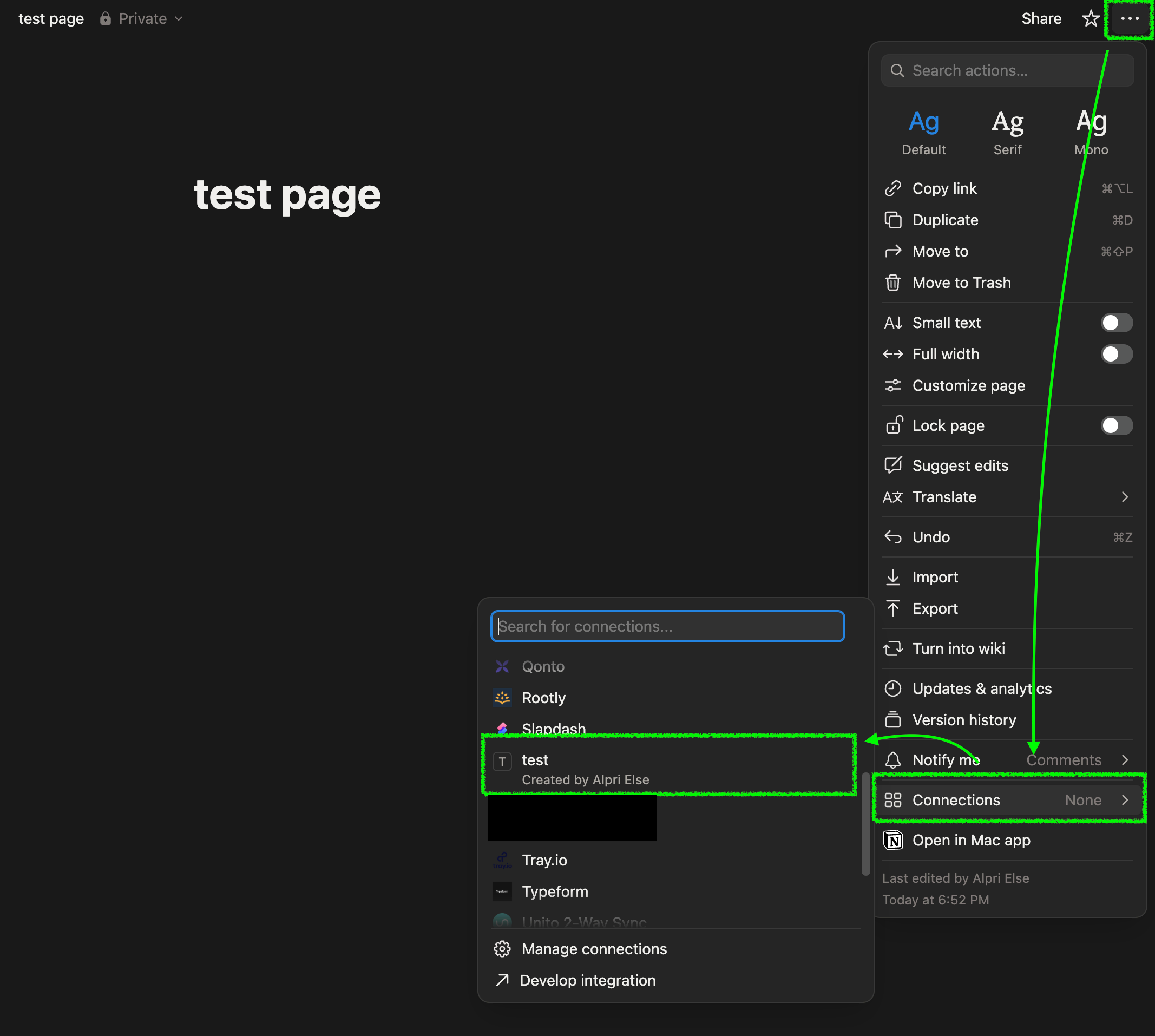
Within the page we want to manipulate, we go into the Page Settings then “Connections” and then we find our newly created integration.
You’re now good to go. Make sure to feed this page’s URL into the Cursor prompt so it knows where to create a new database for your data upload.